Configuring the details page
On the details page, you can easily see all of the information on a tab. If you are managing a lot of information about records, the details page can be a very useful way to organize information to make it easier for Block users to work and understand what is being tracked. Any builder for a given Block has the ability to configure how the information will appear at the top and on the left and right sides of the page.
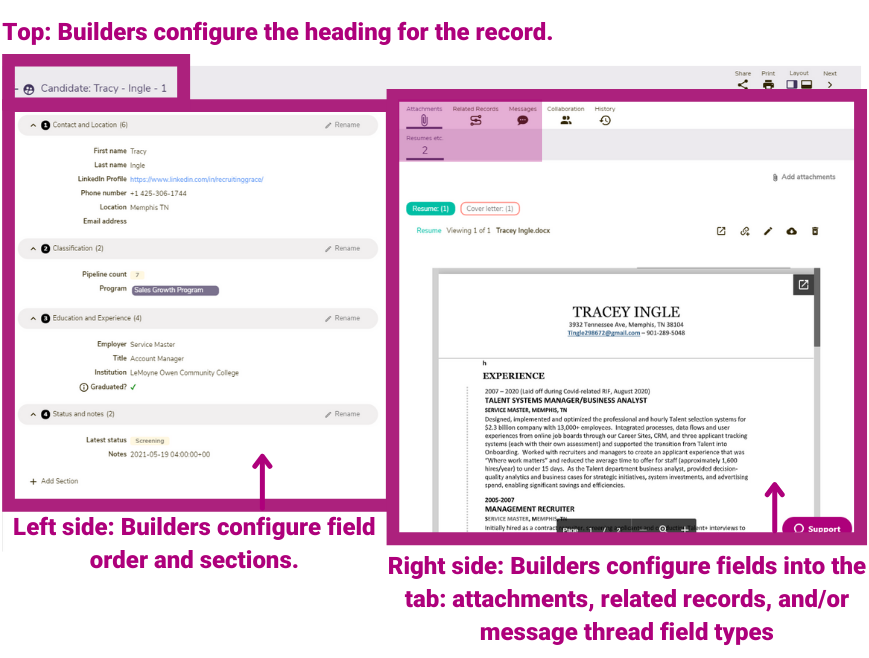
The configuration that a builder has most recently defined for the details page on a tab determines the information layout that ALL users will see when they visit the details page for any record of that tab. This article covers the following:
- Top: Configuring the heading of the record
- Left side: Configuring sections and ordering fields on the page
- Right side: Configuring whether attachments, related records and/or message options appear
Top: Configuring the heading of the record
The icon, record name, and record identifier determine how the heading appears on the details page. This is an important visual aspect for users in explaining the information they are working with. There are three elements to the heading: the Icon, Record name, and Record identifier, as illustrated in the example below.

Builders configure this information by following the steps outlined below, which are also discussed in managing tabs.
| Step | Action | Visual |
| 1 |
Click the tab where you'd like to configure the icon and/or record identifier.
|
|
| 2 |
Click the Actions dropdown for the tab, and then select Edit tab properties. |
 |
| 3 |
In the Record name field, enter the record name. Typically, it is best to use a singular instance of the tab name. For example, if Candidates is the tab name, use Candidate for the Record name. |
 |
| 3 |
In the Icon field, scroll through or enter search criteria to find and then select an icon that represents the record you are working with. |
 |
| 4 |
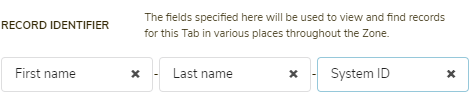
In the record identifier field, select up to three fields (one in each of the dropdowns) from the tab that you'd like to use to help identify the record. When rendered, the selected fields will be separated by a dash (-). For example:
🔔 If you leave a field blank, it will be ignored. 🔔 You cannot configure text area and multi-select value options in the relational identifier field. |
 |
| 5 |
Click Save. |
 |


Left side: Configuring sections and ordering fields on the page
The left side of the details page is where most fielded data about a record reside. These fields are grouped into sections. At the bottom of this section (which may requrie scrolling), Builders can choose to configure the layout of this content using the Edit layout button.

Follow the steps below to add sections and to move the sections and fields into their desired locations.
| Step | Action | Visual |
| 1 |
Click the first column, a details icon a hyperlinked ID or Record Name (what appears in the first column will depend on the configuration and/or view) See managing tabs to learn more.
The details page loads.
|
|
| 2 |
Click the Edit layout button at the bottom of the left panel. This option is only available for Builders and may require scrolling to access. The edit details page layout panel papears. |
|
| 3 |
To add a new section, in the Create new section field, enter a name and click Save section. The new section will be added to the sections listed just below int he panel. By default, no fields will be included in the section. You will need to modify the section by follwoing the steps outlined below.
|
 |
| 4 |
Rename Section: Edit Field Options: Delete Section: |
 |
| 5 |
Select fields for a section: Remove fields from a section: Reorder fields: Save changes: 🔔 Field in the (unmapped) section are not assigned to a section and currently do not display on the details page to anyone. 🔔 Field fields in the Available fields list using the filter fields option at the top you can filter by a fields name as well as the fields current (section name). |
 |
| 6 |
To change the order of sections appears on the details page, use the drag icon just to the right of the action dropdown button and move the sections into the desired order. |
 |
| 7 |
Repeat steps 4,- 6 until all fields are displayed in their desired section and the sections are in their desired order. Then click Save layout to apply your changes. The details page will refresh and reflect the newly saved changes. This change is system-wide for all records and all users on the tab. Going forward, anyone who view the details page for this tab will see these updates reflected. |
 |


Right side: Configuring whether attachments, related records, and/or message options appear
The content on the right side of the details page is controlled by the builder's management of the fields in the tab. This is something builders can do while working in spreadsheet view. If certain fields are included in the tab, the corresponding section appears.
| Field type | Details |
|
Attachments
|
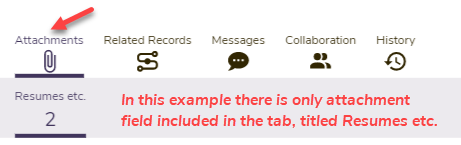
If one or more attachment fields, or lookups of attachment fields, are added to the tab, then the Attachments section will appear in the right panel as the first (left-most) option. A sub-option representing each field included will appear in the gray sub-section.
|
|
Related records |
If one or more relational fields have been added and configured as "multi-select," then the Related Records section will appear: The order of the related records will correspond directly to the order in which they appear to the user when viewing the list of records in either spreadsheet view or quick view. |
|
Messages |
If the messaging thread field (which can only be added once to a tab) has been added, then the Messages section will appear:
(Note: This section has moved locations to be the first one in the right panel.)
|